Design & images
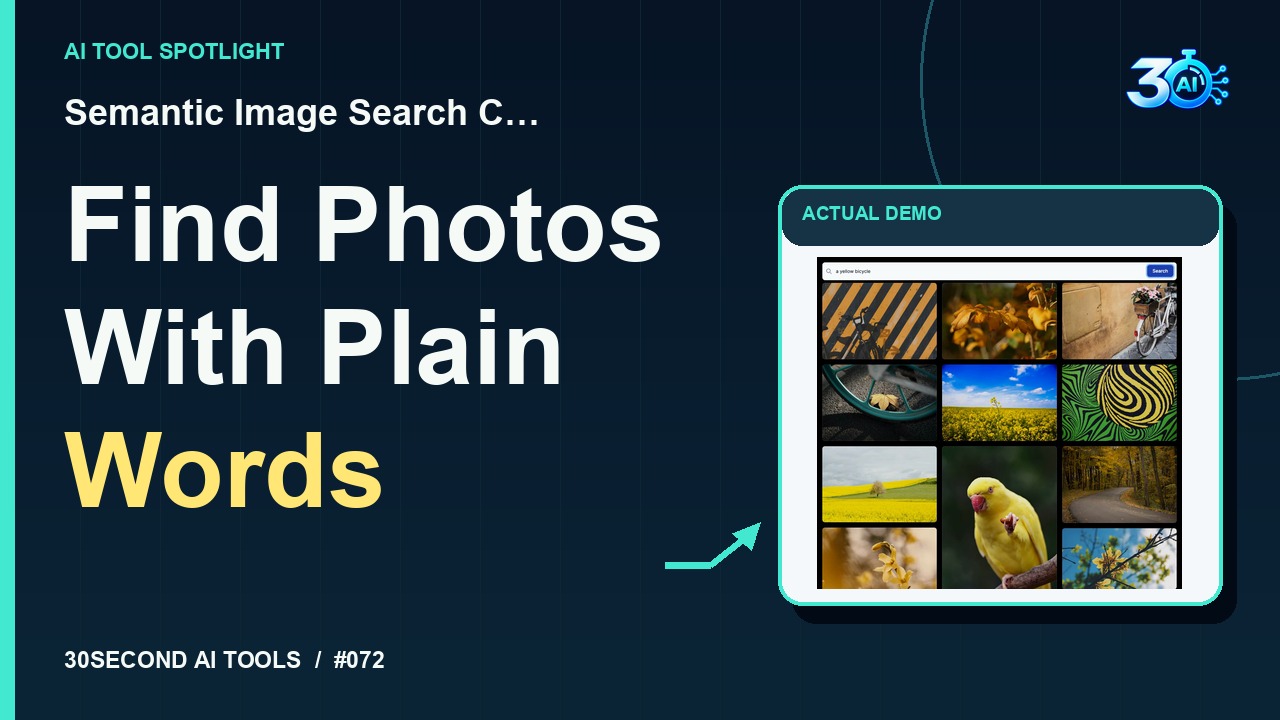
Semantic Image Search Client
Search an existing photo collection with a natural-language description
Read the guide 30SecondAIToolsTHE PRACTICAL AI FIELD GUIDEWatch the channel ↗
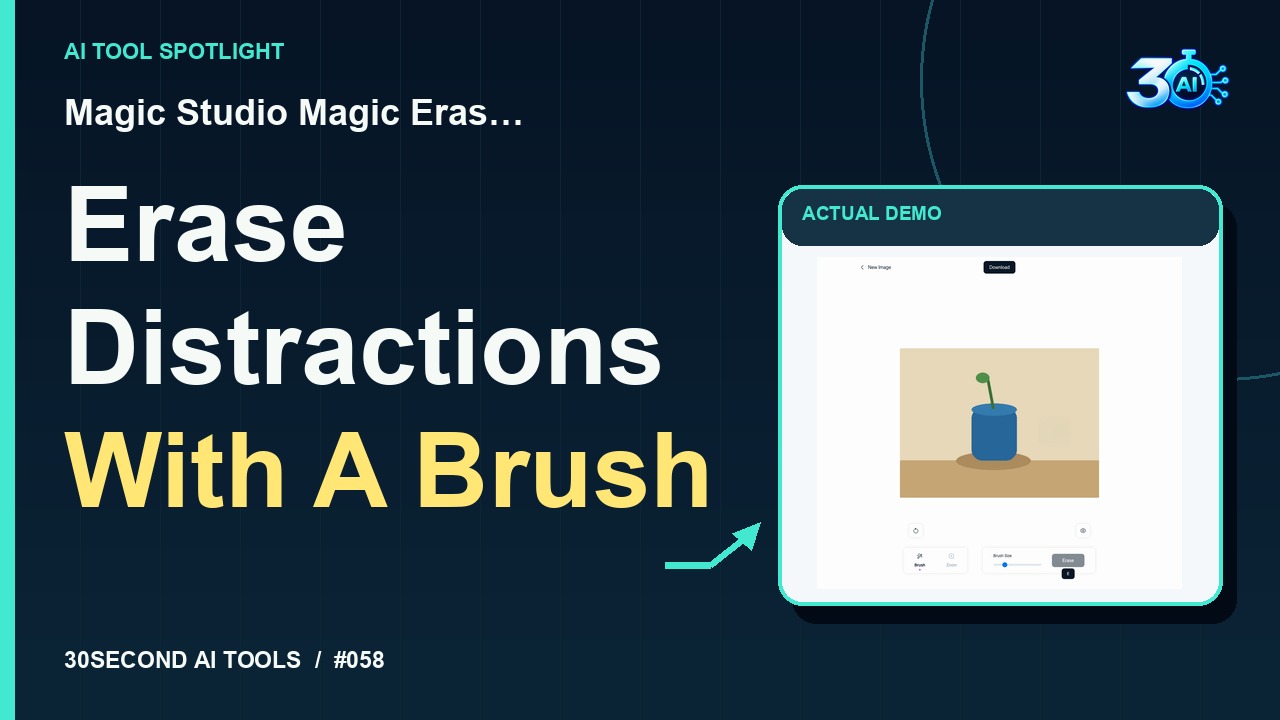
See Magic Studio Magic Eraser apply AI inpainting to a red circle beside a blue vase in an original test illustration. The actual generated fill is a draft to inspect for artifacts. Free single-image editing requires no signup; free downloads have resolution and branding limitations.
Magic Studio Magic Eraser is featured here for one specific job: brush-selected AI inpainting. This guide focuses on that workflow so you can decide whether it fits your task before trying it.
Brush-selected AI inpainting
Try brushing it away! This is Magic Studio Magic Eraser. In this original test image, we brush over the red circle beside the blue vase, then click Erase. Here’s the actual generated fill. The marked area changed, but treat this as a draft. Inspect that background for leftover marks, new shapes, or color changes before using it.
A small, specific input makes the result easier to inspect. Use the example below to understand the scope of the recorded workflow; it is not a promise that a new run will produce an identical result.
Load the channel-owned original_test_scene.png fixture, paint over the red circle to the right of the blue vase, and click Erase. Inspect the actual filled background.
Start with material you own or have permission to use. Save the original and compare it with the output before moving the result into a real project. If the interface has changed, follow the current official instructions linked below.
Object removal can create artifacts. Keep the source image so the edit can be compared and reversed.
Keep the task narrow on your first attempt. Check the details that matter to your use case rather than judging only whether the result looks polished. A successful short example is a useful introduction, not a benchmark of the whole product.
Official page checked 2026-10-28: single-image editing is free without signup. The free tier lists ads, a Magic Studio logo and low-resolution downloads. This demonstration requires no paid download.
Availability notes refer to the dated demonstration or source check. Features, limits and sign-in requirements can change. Check the official site before starting a larger project.
Visit Magic Studio Magic Eraser ↗This guide expands the channel’s recorded example and the official sources checked for that reel. Generated results are examples, not endorsements or guarantees. Read our editorial policy.
Search an existing photo collection with a natural-language description
Read the guide